Microsoft Excel Templates
What are Microsoft Office Excel Templates?
An MS Excel spreadsheet template is a spreadsheet that has been setup, configured and protected to allow data entry in predetermined cells.
Formulas can be defined that perform calculations on the data entered and the results can be presented graphically in predefined graphs
Creating spreadsheets from templates allows users with little or no experience of Excel to analyze, present and report on the information they enter.
Templates help to ensure the quality of data entered by utilizing cell formatting and data entry masks. By standardizing the locations of where data can be entered, multiple spreadsheets can be analyzed with ease.
Data can also be imported into more robust databases if required.
Once a spreadsheet template has been completed, the spreadsheet can be saved as a normal Excel spreadsheet. The saved spreadsheet can be amended without changing the original Excel template file.
Excel Spreadsheets vs Excel Spreadsheet Templates
A Microsoft Excel 2003 spreadsheet has the (.xls) file extension.
An MS Excel 2010 spreadsheet has the (.xlsx) file extension.
These are the default file types when saving spreadsheets in Microsoft Excel. Any amendments made to the spreadsheet file (.xls or .xlsx) and any data that is entered and saved will be there the next time the spreadsheet is opened.
Excel 2003 spreadsheet template files have the (.xlt) file extension.
Excel 2010 spreadsheet templates have the (.xltx) file extension.
If protection has been applied, it will need to be removed before changes can be made.
Each time a spreadsheet template file is opened for use by double clicking on the Microsoft Office Excel Spreadsheet Template icon, the predetermined cells for data entry will be blank.
When data has been entered the spreadsheet can be saved as a normal Excel spreadsheet with the (.xls or .xlsx) file extension, unless otherwise defined by the user. The saved spreadsheet can be amended without any changes being applied to the original spreadsheet template.
Using Excel templates saves you time, helps to ensure better quality data entry and enables large volumes of data to be analysed and results plotted automatically.
Spreadsheet templates also ensure that the original purpose, presentation and configuration of the spreadsheet is retained.
Downloading Microsoft Office Excel Templates from class-templates.com
All Excel templates available to download have been compressed and saved as ZIP files.
When you click on a text link or picture that allows you to download an Excel template make sure that you save the ZIP file to your local PC or network.
If you do open the template directly from class-templates.com, the template will open ready for data entry. If you save this spreadsheet it will save as a normal spreadsheet with the (.xls or .xlsx) file extension.
Read my advice on saving your templates.
When you have downloaded and saved the ZIP file locally, I recommend that you extract/unzip the folder
that contains the individual template and it's instructions (if
provided). This will ensure that all related files are saved together
If you do extract/unzip the files individually from the ZIP file into your directory system ensure that you know where to find them.
Once extracted from the ZIP file the spreadsheet template file (.xlt or.xltx) should have the Microsoft Office Excel Spreadsheet Template icon.
Opening a Microsoft Excel template
To open an Excel Template for use double click on the Microsoft Office Excel spreadsheet template icon.
The Security Warning screen shown below will be displayed for templates created using MS Excel 2003. This happens because the spreadsheet contains Macros - pieces of code that allow certain functions to be executed (see my note below regarding macros and security).
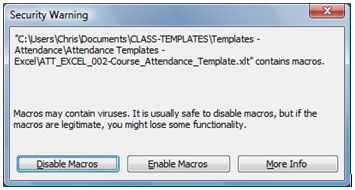
The root directory address (C:\\Users\\Chris\\Documents\\CLASS-TEMPLATES...etc) displayed in your security warning prompt box will be different to the example above. This refers to the location where the template is saved on your local PC or network.
Click on the Enable Macros button (see my note below regarding macros and security).
The spreadsheet opens and a worksheet within the workbook is displayed.
To proceed using the spreadsheet, refer to the instructions provided for the specific spreadsheet template being used.
Enable Macros - what does it mean and are they safe?
A macro is a procedure or a collection of procedures that contain programming code. Within Microsoft Excel the code used is called Visual Basic for Applications (VBA).
Macros and VBA help to automate repetitive tasks within Microsoft Office applications, helping the user to save time by working more efficiently.
You do not have to understand or have knowledge of how VBA works to be able to use macros within my templates. They are run automatically when you click on a button or other object that has VBA code attached to it.
All templates available to download from Class Templates that
contain macros are legitimate and are there for the sole purpose of
improving the templates functionality.
Before opening Microsoft Excel Templates or any other files downloaded from the internet check that they are safe to open
OTHER MICROSOFT OFFICE TEMPLATES ON CLASS-TEMPLATES.COM
MS Word templates (word processing)


TOP 5 TEMPLATES
MS EXCEL TEMPLATES
ATTENDANCE TEMPLATES:
THE EXCEL BIBLE
The Help files provided with MS Excel are excellent but even in today's world of obtaining everything we need to know on-line, there is no substitute for picking up a good book.
The Microsoft Excel 2010 Bible by John Walkenbach contains pretty much everything you will ever need to refer to.


Like me, unless you have two screens, you may find it confusing switching between windows to look at the Help files and trying to implement what you have been reading into your spreadsheet.
Trying to get you head around a new formula or chart type can be frustrating. Don't make it worse by getting confused with multiple windows open on your desktop.
There's nothing wrong with returning to how it was done in the 20th century....pick up a book!
Download one of class-templates free Excel templates and take it to the next level with help from the Excel 2010 Bible.
 |
Planning Templates: |
Attendance Templates: |
Awards: |
Tips & Advice: |
|
Flash Cards: |
Maths Resources: . Times Tables |
|
class-templates.com Copyright 2024 |